- Welcome to SimpleGradebook Support Forum.

Recent posts
#81
How Do I for Administrators/Counsellors / What Can Administrators Do?
Last post by TimDaniel - October 13, 2015, 11:46:49 AMAdministrators can:
View Student Information including overall grades and details of teacher assessments
Create a Student Watch List (students whose academic progress is a concern)
Combine Students (when two different student records have been accidentally created for the same student)
Create Semester Codes
Create a New Access Code for the School (to be used by teachers and administrators when joining the school)
Change the School Name
View a Teacher's Classes (note: view only, grades can not be changed)
#82
How Do I for Administrators/Counsellors / How Do I Create an Administrat...
Last post by TimDaniel - October 13, 2015, 11:38:35 AMOnce a school has been created, there will be a secret code for the school visible to the first person that created it. The code is available by choosing Profile->Schools->View My Schools. Anyone with that code can now join the school.
All that is needed to create an administrator account is to make the account (use Create Educator Account on the login screen and choose the Administrator option) and then join the school using the code.
Note that it is very important that the code remain secret from parents and students, otherwise they can view private information for other students.
#83
How Do I For Teachers / How Do I View Assignment Avera...
Last post by TimDaniel - October 13, 2015, 11:30:41 AMSimplegradebook pro teachers can view class averages for percentage and letter grade classes. A checkbox has been added at the bottom of the gradebook spreadsheet. Checking the box will result in both overall class and assignment averages being displayed.
Class and assignment averages are NOT updated when a new grade is entered. If you want to see updated averages, refresh the page.
Averages are calculated as follows:
1) excused assignment grades (for example, ABS, or blank) are not included in the average
2) grades of NHI, DNW or INC are calculated as zero
3) performance scale grades (ME etc.) are not included in the calculations
Parents and students are not able to view class or assignment averages. Simplegradebook/Newcastle Technologies recommends that teachers use caution when clicking the averages checkbox to make sure that they are not accidentally shown to students, for example if the gradebook is being displayed on a display projector.
#84
FAQ / Can I Print a Blank Grading Sh...
Last post by TimDaniel - October 13, 2015, 11:27:28 AMThis feature is included in simplegradebook pro. A workaround for doing this in the free version is to use the Export Gradebook to Excel feature. This will give you a spreadsheet for each class. You can then clear out any grades in the excel spreadsheet and use it to print a blank grading sheet.
#85
Report a Bug / Re: Bug report
Last post by TimDaniel - June 01, 2015, 01:58:55 PMSorry, but you will have to discuss that with your teacher.
#86
Report a Bug / Bug report
Last post by Mitthrawnuruodo - April 27, 2015, 12:51:40 PMMy grades are too low.
#87
How Do I For Parents/Students / I Can't Remember My Password -...
Last post by TimDaniel - October 25, 2014, 07:40:53 PMOn the main login screen select "I forgot my password".

If you enter your user id, simplegradebook will send you an email with a new password that you can use to log in. On your first login you will be asked to change your password to a new password. Create a new password that you can remember.
If you enter your user id, simplegradebook will send you an email with a new password that you can use to log in. On your first login you will be asked to change your password to a new password. Create a new password that you can remember.
#88
How Do I For Parents/Students / I Can't Remember My Username -...
Last post by TimDaniel - October 25, 2014, 07:39:11 PMOn the login screen, select "I forgot my userid".
Enter the email address you used to create the account here. If you enter your email, simplegradebook will send you a reminder email with your user name in it.
If all else fails, you can create a new account, but you will have to re-enter your access codes if you are a student or parent.
Enter the email address you used to create the account here. If you enter your email, simplegradebook will send you a reminder email with your user name in it.
If all else fails, you can create a new account, but you will have to re-enter your access codes if you are a student or parent.
#89
How Do I for Administrators/Counsellors / How Do I Archive Classes for a...
Last post by TimDaniel - October 25, 2014, 07:36:48 PMSimplegradebook users with admin privileges can archive classes. From the Classes menu, enter the first name or last name of the teacher. You will see a display of all the teacher's non-archived classes. There is an Archive button on the far right - you will be asked to confirm that you want to archive the class after clicking the button.
#90
How Do I For Teachers / How Do I Get Started in Simple...
Last post by TimDaniel - October 10, 2014, 10:56:57 PMTo get started if you are just trying out the program for fun:
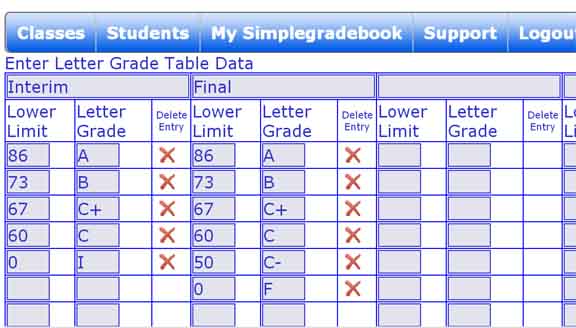
1) Create a Grade Table (look for this under the Classes menu item). Grade Tables determine how a numeric grade will be translated into a letter grade. Here is an example:
2) Create a Class. On the Classes menu item, select New Class. Enter the class name and select your Grade Table. There are more options you can choose but a name for the class and a grade table is all you really need to get started.
3) Enter Students into the class. Click the Classes button and you should see your class. Click the Students button and the click the Edit Students button. There are some instructions there on how to enter a student. Enter as many students as you like - even an entire class can be pasted into the Edit Students box. Just make sure each line has Firstname, Lastname and Student Number in that order.
4) Now start creating assignments and exploring the features of Simplegradebook. Have fun!
To get started if your school is already using simplegradebook:
1) After you log in, click the Schools button in the Profile menu item. Then click Join a School and enter the Secret Code for your school. You can ask any other teacher in the school what the code is - they all have it in their View Schools button.
2) Follow all the steps above.
1) Create a Grade Table (look for this under the Classes menu item). Grade Tables determine how a numeric grade will be translated into a letter grade. Here is an example:
2) Create a Class. On the Classes menu item, select New Class. Enter the class name and select your Grade Table. There are more options you can choose but a name for the class and a grade table is all you really need to get started.
3) Enter Students into the class. Click the Classes button and you should see your class. Click the Students button and the click the Edit Students button. There are some instructions there on how to enter a student. Enter as many students as you like - even an entire class can be pasted into the Edit Students box. Just make sure each line has Firstname, Lastname and Student Number in that order.
4) Now start creating assignments and exploring the features of Simplegradebook. Have fun!
To get started if your school is already using simplegradebook:
1) After you log in, click the Schools button in the Profile menu item. Then click Join a School and enter the Secret Code for your school. You can ask any other teacher in the school what the code is - they all have it in their View Schools button.
2) Follow all the steps above.